
The Manage Snapshot page lets you revert a snapshot and delete them.
You can take more than one snapshot of the LogPoint instances at any instant. You can also revert them at any time. Reverting the system to a snapshot deletes all the progress and changes. It also restores the database at the instance of the creation of the snapshot.
Note
Refer to Create Snapshot section for details on how to create a snapshot.
Go to Configure >> Settings >> Operations >> Manage Snapshot.
Select the LogPoint instances where you want to manage snapshot.
Click Next.
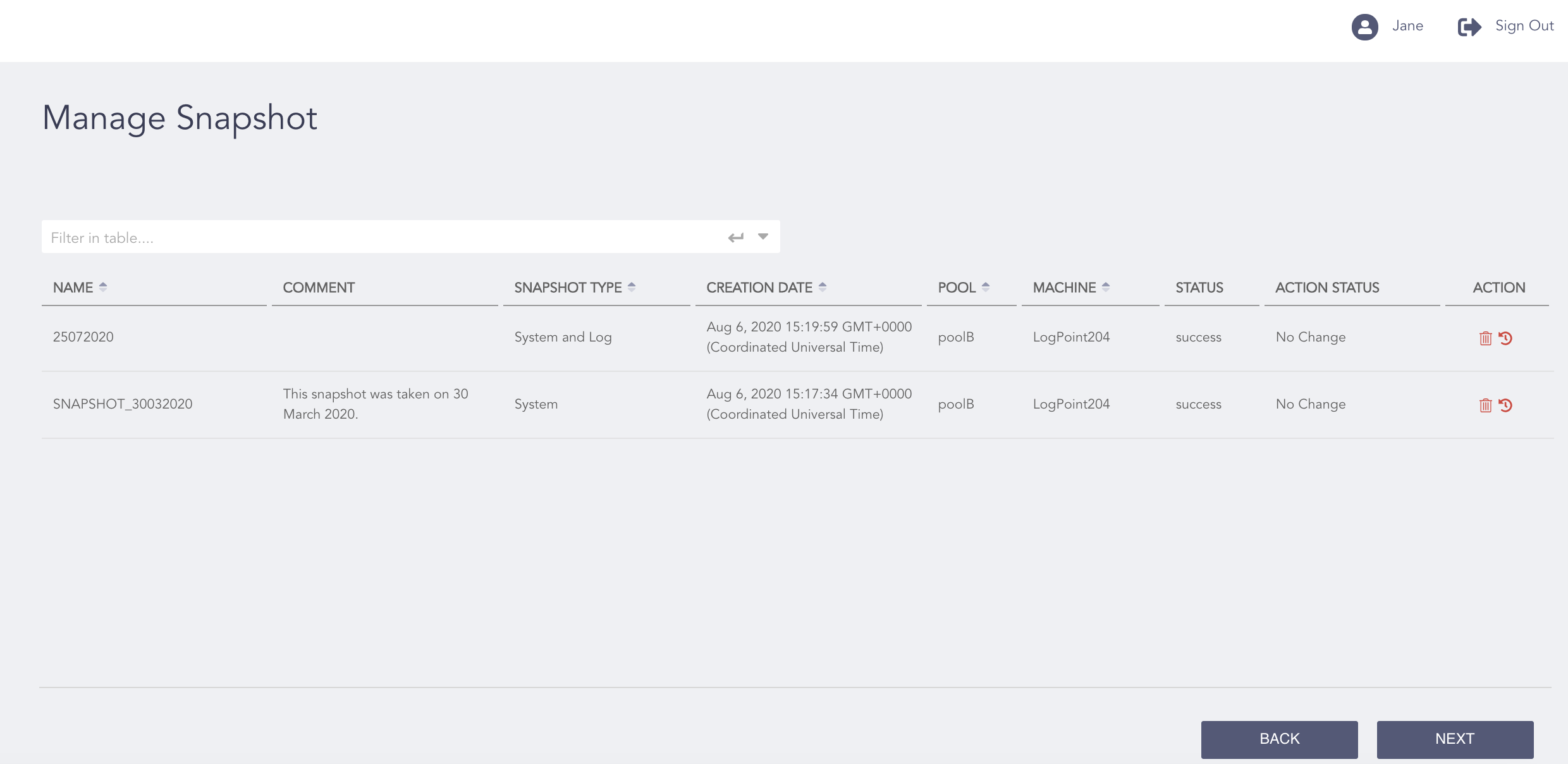
Manage Snapshot Page
In the Action column, click the Delete ( ) icon to remove a snapshot or click the Revert (
 ) icon to revert a LogPoint to the state of snapshot selected.
Note
You cannot perform any action on a snapshot when its status is in progress.
Reverting to a snapshot also deletes all the later snapshots.
The system reboots while reverting to a snapshot and all the services stop. You might also lose the incoming logs during the reversion period.
While reverting a snapshot, the application heavily uses its resources. It may cause LogPoint to respond slowly. In such cases, you may need to reboot the system using the li-admin reboot command manually.
Click Next.
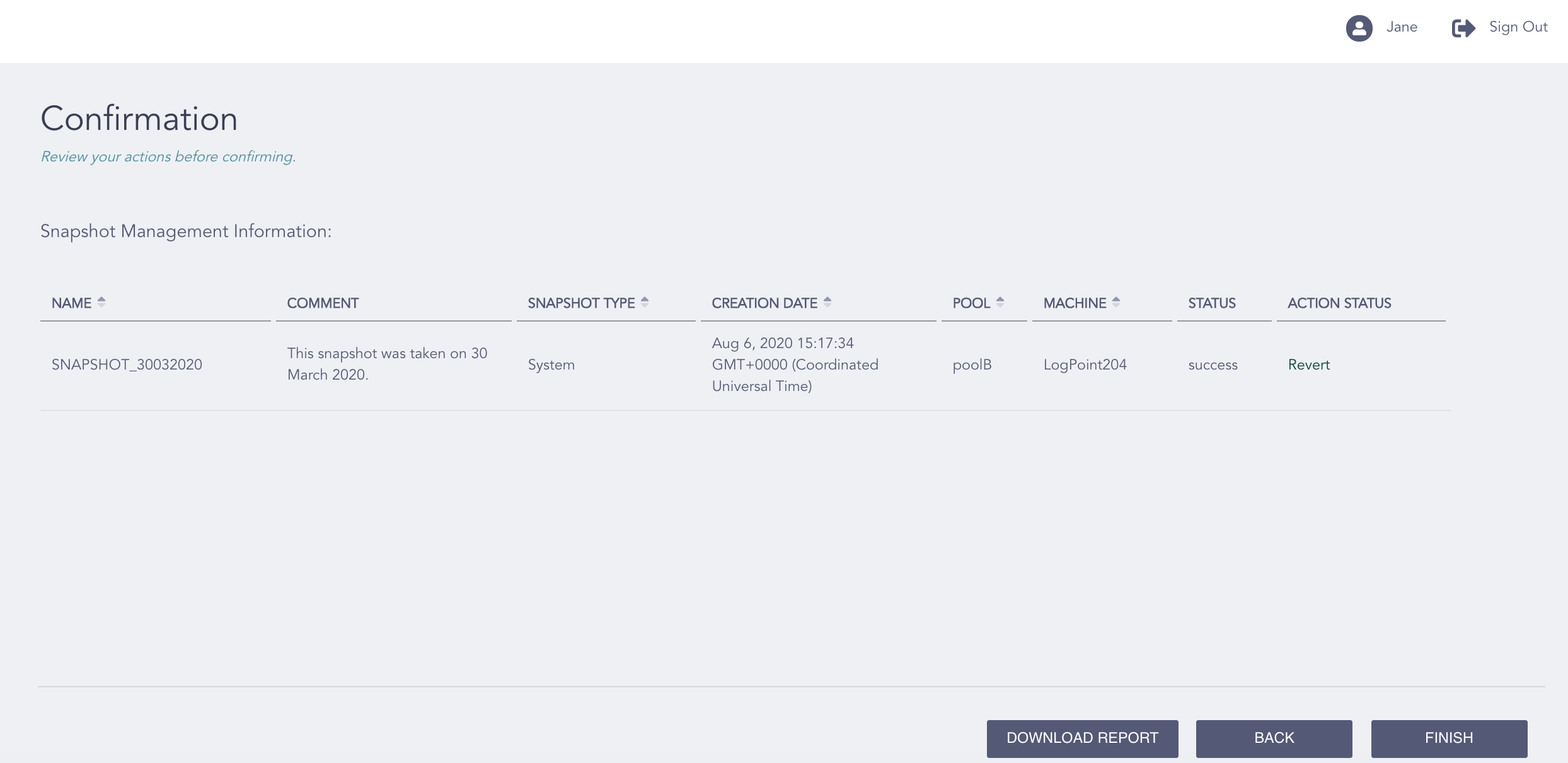
Manage Snapshot - Confirmation Page
Review your changes. You can go Back to make any changes if necessary.
Note
Click Download Report to save the summary of the task in PDF.
Click Finish.
Click OK. All the services restart, and you might lose logs during this period.